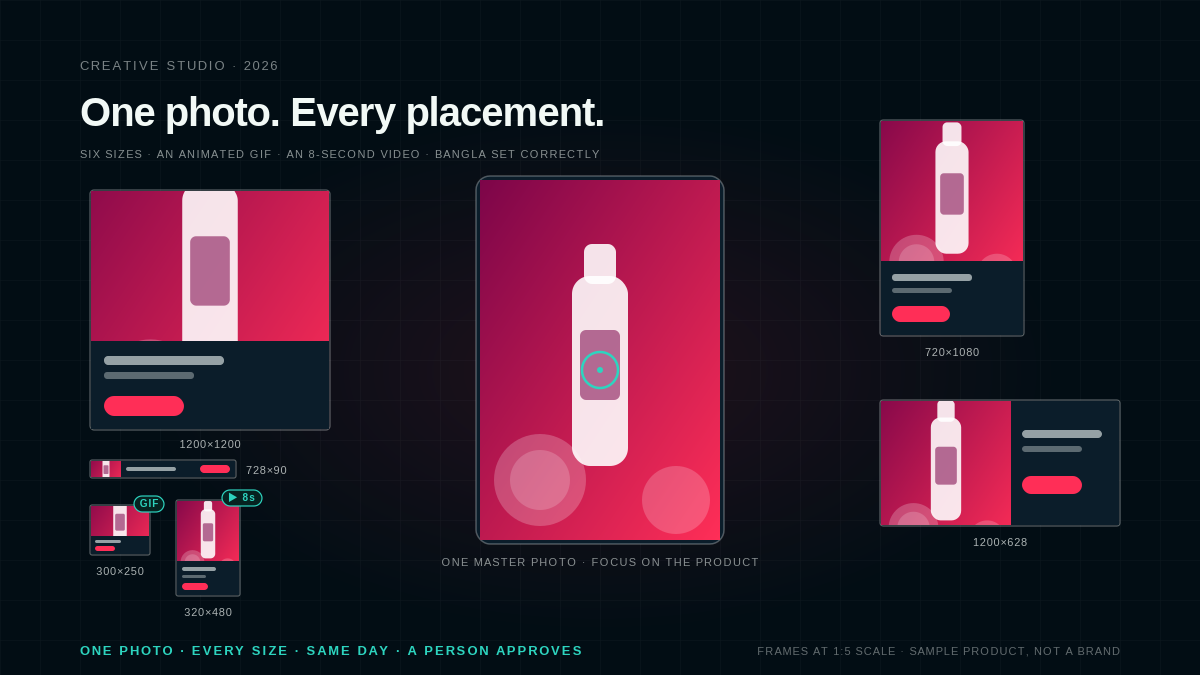
In October we introduced Creative Studio, the part of the AdZoic dashboard that turns one photo and a short message into a set of ads. This is the practical follow-up: the four steps on the screen, every size and format it makes, and the guardrails around it, as the screen stands on 23 November 2026.
The screen describes itself in two sentences: “One photo and a short message become every banner size, an animated GIF and a short video. They are saved as drafts, attached to the campaigns you pick, and start serving there once approved.” The rest of this post is that summary, taken one step at a time.
One thing to do first: choose the advertiser at the top of the dashboard. The creative sets you can pick, and the images you upload, belong to that advertiser.
The screen at a glance
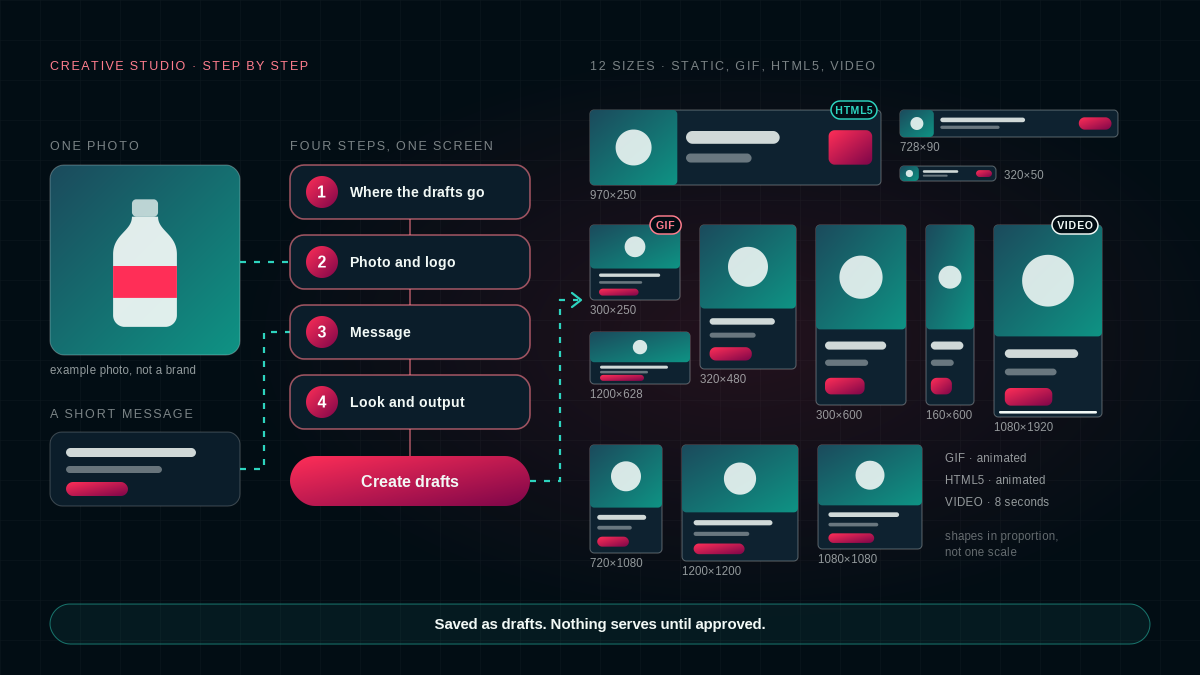
The screen has four numbered steps and a live preview beside them. Until you type a headline or a button, the preview shows sample text, for example at 300×250 and 320×480, so you can see a layout before you have written a word.
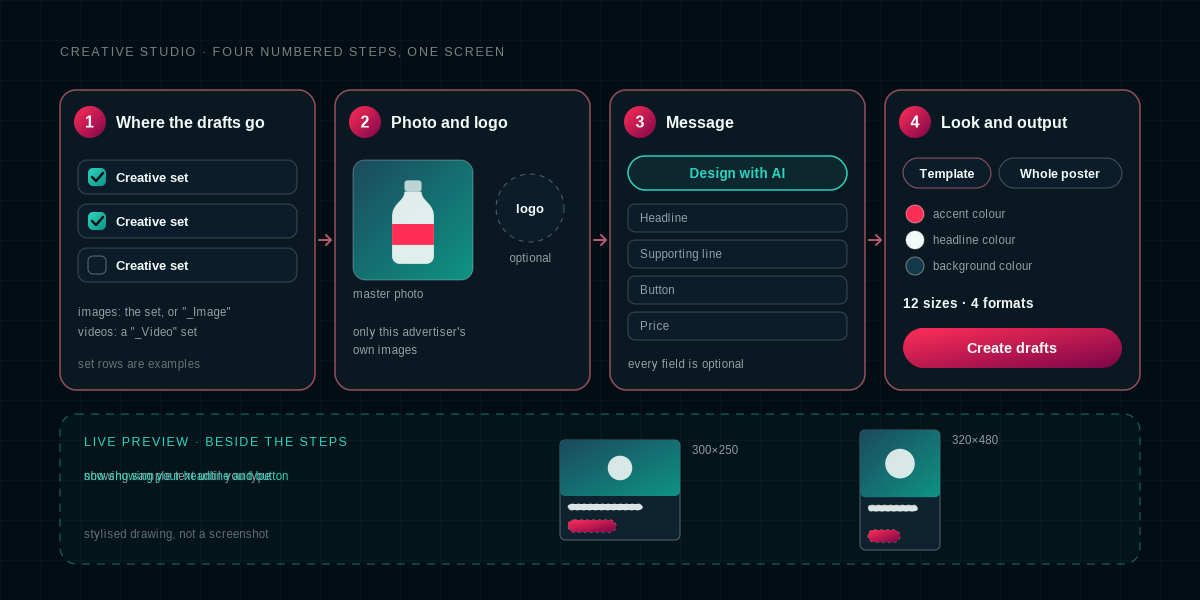
The four steps and the live preview. A stylised drawing, not a screenshot.
- Where the drafts go. Pick the creative sets that will receive the drafts.
- Photo and logo. Upload one master photo and, if you have one, a logo.
- Message. Write the copy yourself, or ask for AI suggestions and edit them.
- Look and output. Choose templates, colours, sizes and formats, then press Create drafts.
Step 1: where the drafts go
You choose creative sets. These are the banner sets of the advertiser selected at the top of the dashboard, and every draft is saved into each set you pick.
The studio then puts each kind of file in its place:
- Images go into the set itself, or into a matching “_Image” set when the set holds JavaScript or rich-media tags.
- Videos go into a matching “_Video” set.
Step 2: photo and logo
Upload a master photo and, if you wish, a logo. Both are stored for the selected advertiser, and the screen is direct about whose pictures belong there: “Only upload this advertiser's own images.”
It also says what kind of photo to bring: “A clean photo works best: the studio writes the headline, price and button itself, sized for each banner.” In other words, bring the picture without words on it and let the studio set the text.
If all you have is a finished poster, the screen offers two routes. You can remove the poster's text with AI, and look at the result before you use it. Or you can pick the “Whole poster” template, “which shows the entire poster with nothing cropped and adds no text.”
Step 3: the message
This step has three parts: an AI helper, the language of the copy, and the fields themselves.
Design with AI
The screen explains it this way: “Claude looks at the photo and proposes complete designs: the crop, where the text goes, and copy that fits each size. You pick one, change anything, then create drafts as usual.”
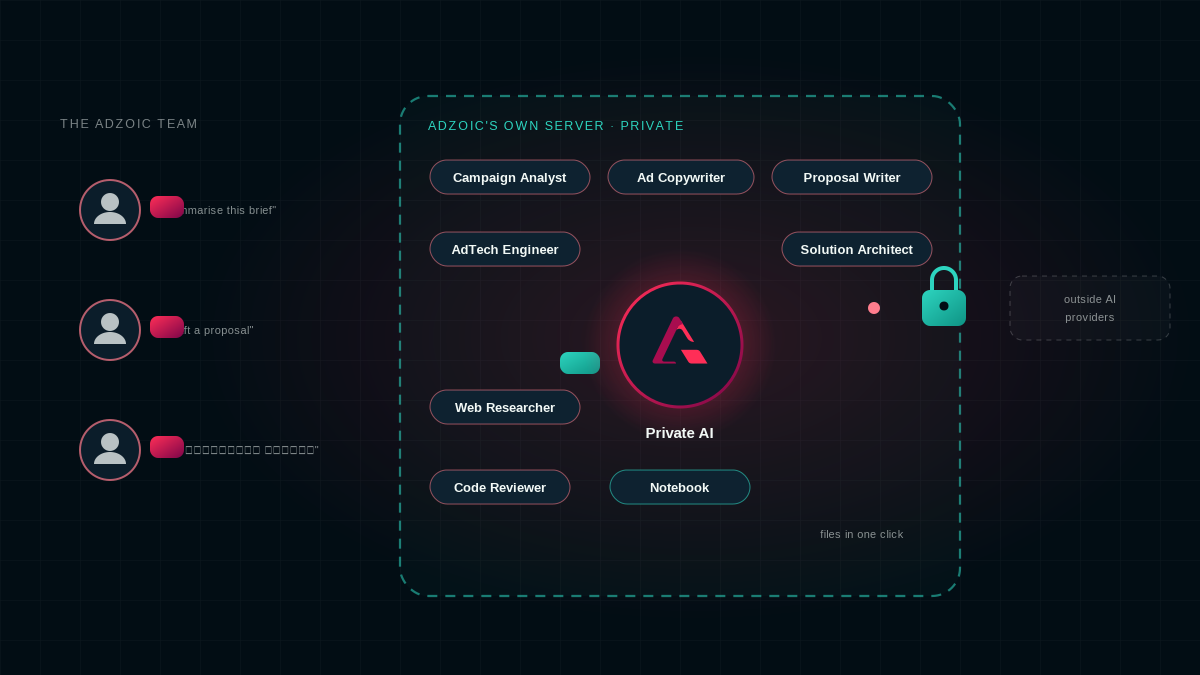
Claude is the AI model made by Anthropic. It is an outside service, not something AdZoic built. So when you use Design with AI, an outside model is what looks at your photo and your notes.
There is an optional box, “What should the ad say?”, for “The offer, who it is for, and any facts the copy may use”. With it the screen states: “Claude only uses what you write here and on the page; it does not invent prices or claims.” A counter shows how many AI suggestions you have left this month.
Treat every suggestion as a proposal. AI can be wrong: a crop can cut the wrong thing, and a line of copy can say something you did not mean. Read each design, check every fact and price against what the advertiser gave you, and change what needs changing. A person picks, edits and approves. The AI does none of those.
Copy languages
You choose the language of the copy. The options include Bangla, English, a mixed “Bangla headline, English button” option, and Bahasa Indonesia.
The fields
Every field is optional:
- Headline
- Supporting line
- Button
- Price
- Brand name. The screen notes: “Drawn when there is no logo; also names the creatives”.
- Ad domain
- Click URL
The screen adds: “Leave the headline or the button empty to leave it out; the whole banner is clickable either way.”
If you leave the click URL empty, the studio uses each campaign's landing page, “which already carries the click id”. If you type your own click URL, you can add these macros to it:
{click_id} {campaign_id} {creative_id} {creative_size} {site_domain} {bundle_id} {device_id} {cachebuster}
This step carries a warning, in the screen's own words: “Keep claims checkable: avoid ‘free’, ‘win’, ‘guaranteed’, ‘best’ or prize and money promises unless the advertiser can show them true. Ad networks and our reviewers reject them.”
Step 4: look and output
First, the look. You can select more than one template; as the screen puts it, “Each template makes its own drafts; the preview shows the first”. Then come three colours: an accent colour, used for the brand name, the price and the button, a headline colour and a background colour. Each has an optional gradient and an opacity slider.
Then, the output: which sizes and which formats. When you are ready, the button is Create drafts.
Every size and format it makes
As the screen shows on 23 November 2026, there are 12 sizes and 4 formats. Not every format is made at every size.
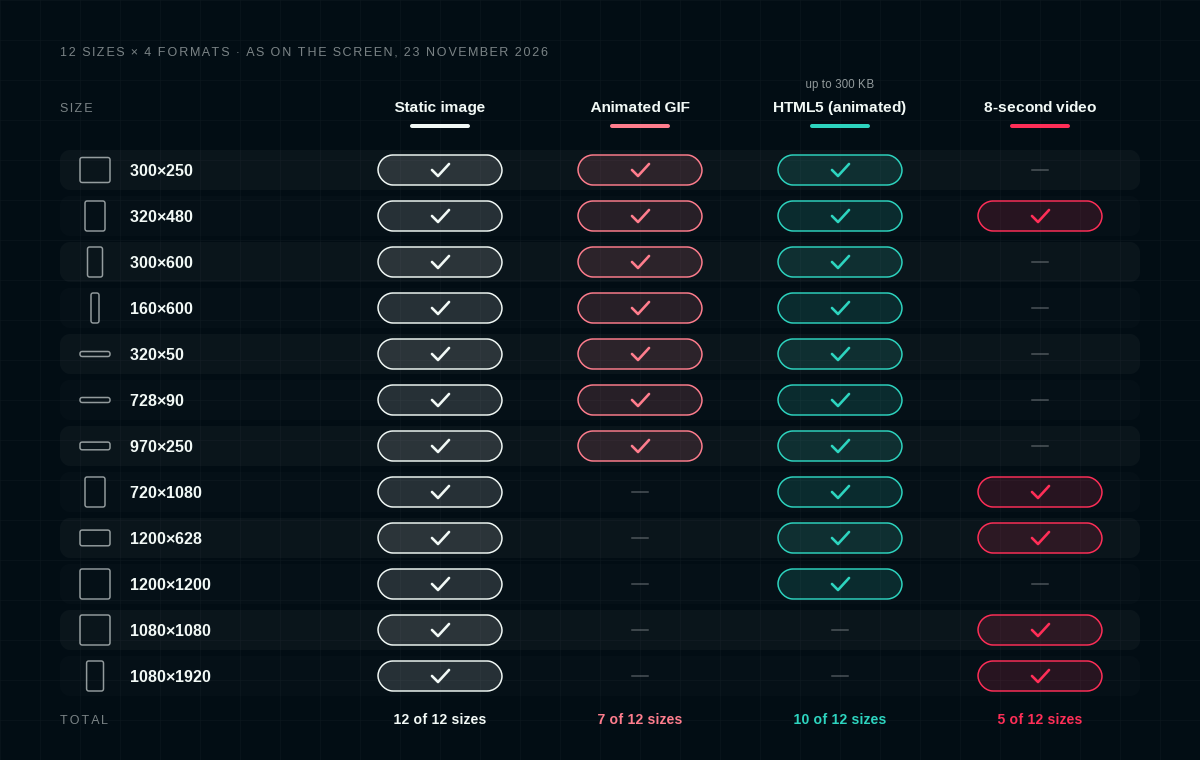
Which format is made at which size, as on the screen on 23 November 2026.
| Format | Made at these sizes | Sizes |
|---|---|---|
| Static image | 300×250, 320×480, 300×600, 160×600, 320×50, 728×90, 970×250, 720×1080, 1200×628, 1200×1200, 1080×1080, 1080×1920 | 12 |
| Animated GIF | 300×250, 320×480, 300×600, 160×600, 320×50, 728×90, 970×250 | 7 |
| HTML5 (animated), up to 300 KB | 300×250, 320×480, 300×600, 160×600, 320×50, 728×90, 970×250, 720×1080, 1200×628, 1200×1200 | 10 |
| 8-second video | 320×480, 720×1080, 1200×628, 1080×1080, 1080×1920 | 5 |
Three things stand out. 320×480 is the one size made in all four formats. The seven sizes that take a GIF also take HTML5. And 1080×1080 and 1080×1920 are made as a static image or a video.
After you press Create drafts
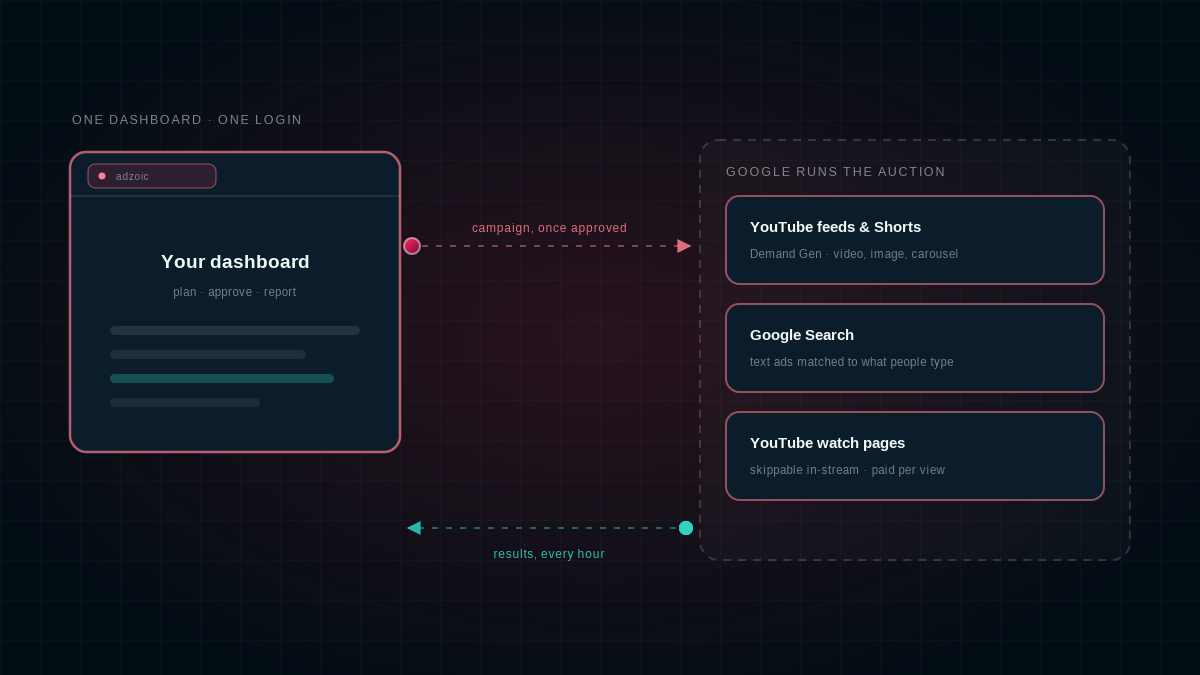
Pressing the button does not put anything in front of the public. The files are saved as drafts in the sets you picked and attached to the campaigns you picked. They start serving there only once approved.
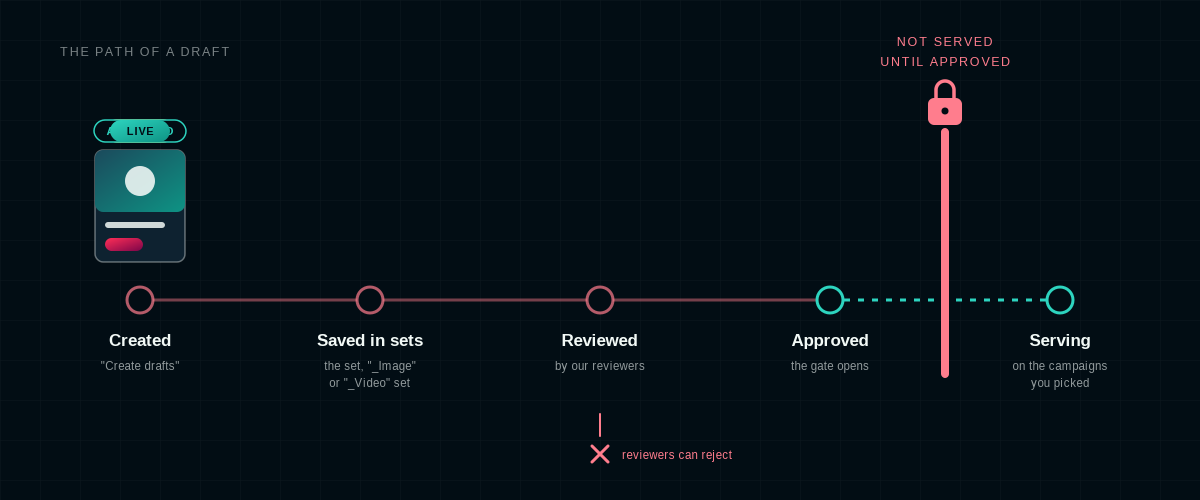
From draft to serving. The gate opens at approval.
Approval is a real step. As the screen itself warns, ad networks and our reviewers reject claims an advertiser cannot show to be true, and that applies whether a person or the AI wrote the line.
The guardrails in one place
- The advertiser's own images. The upload step says so in as many words.
- AI proposes, a person decides. You pick a design, change anything, and create the drafts yourself.
- Facts come from you. The screen states that Claude uses only what you write in the box and on the page, and does not invent prices or claims. Check the copy anyway.
- Claims you can back up. Avoid “free”, “win”, “guaranteed”, “best” and prize or money promises unless the advertiser can show them true.
- A monthly allowance of AI suggestions. A counter shows how many are left this month.
- Nothing serves until approved. Until then, a draft stays a draft.
Questions we get asked
How many sizes and formats does Creative Studio make?
On 23 November 2026 the screen lists 12 sizes: 300×250, 320×480, 300×600, 160×600, 320×50, 728×90, 970×250, 720×1080, 1200×628, 1200×1200, 1080×1080, 1080×1920. It lists 4 formats: static image, animated GIF, 8-second video and HTML5 (animated).
Which sizes get a GIF, HTML5 or a video?
The animated GIF is made at 300×250, 320×480, 300×600, 160×600, 320×50, 728×90, 970×250. HTML5, up to 300 KB, is made at 300×250, 320×480, 300×600, 160×600, 320×50, 728×90, 970×250, 720×1080, 1200×628, 1200×1200. The 8-second video is made at 320×480, 720×1080, 1200×628, 1080×1080, 1080×1920.
Does the AI write and publish the ad on its own?
No. Design with AI proposes complete designs; a person picks one, changes anything and creates the drafts. Drafts start serving only once approved. AI output can be wrong, so read every suggestion before you use it.
Is Claude AdZoic's own AI?
No. Claude is Anthropic's AI model, an outside service. Creative Studio uses it for the optional Design with AI step.
What happens if I leave the click URL empty?
The studio uses each campaign's landing page, which already carries the click id. The whole banner is clickable either way.
See it on your own photo
If you would like to see the four steps run on your own photo and message, talk to us. The platform page describes the rest of AdZoic, and our privacy page explains how we handle data.
The illustrations in this post are drawings, not screenshots, and the photo in them is an invented example, not a brand. Text in quotation marks is quoted from the Creative Studio screen as read on 23 November 2026; the sizes, formats, the 300 KB figure and the options listed are as shown there on that date. Features and availability can change. AI suggestions can be wrong; a person picks, edits and approves them, and our reviewers and ad networks can still reject an ad. Nothing here is a claim about campaign results. Claude and Anthropic are trademarks of Anthropic, PBC, named only to describe the model this feature uses; AdZoic is not affiliated with or endorsed by Anthropic.